> For the complete documentation index, see [llms.txt](https://docs.bugsplat.com/llms.txt). Markdown versions of documentation pages are available by appending `.md` to page URLs; this page is available as [Markdown](https://docs.bugsplat.com/getting-started/posting-a-test-crash/myconsolecrasher-c-plus-plus.md).
# MyConsoleCrasher (C++)
Testing Windows Native C++ crashes with the sample application 'MyConsoleCrasher'
Before you enable BugSplat in your Windows C++ application, you may want to take a moment to experiment with our `MyConsoleCrasher` sample application.
To get started, download the BugSplat SDK for Windows by clicking [here](https://app.bugsplat.com/browse/download_item.php?item=native). Download and unzip the contents of `BugSplat.zip`. After extracting the downloaded SDK, open the `MyConsoleCrasher.sln` file with Visual Studio.
1. Open `MyConsoleCrasher.sln` with Visual Studio 2022+
2. Define values for `BUGSPLAT_DATABASE`, `APPLICATION_NAME`, and `APPLICATION_VERSION` in `Samples\MyConsoleCrasher\MyConsoleCrasher.h`
3. Create a Client ID and Client Secret pair for your BugSplat database on the [Integrations](https://app.bugsplat.com/v2/database/integrations#oauth) page
4. Create a file `Samples\MyConsoleCrasher\Scripts\env.ps1` and populate it with the following (being sure to substitute your `your-client-id` and `your-client-secret` values from the previous step):
```powershell
$BUGSPLAT_CLIENT_ID = "your-client-id"
$BUGSPLAT_CLIENT_SECRET = "your-client-secret"
```
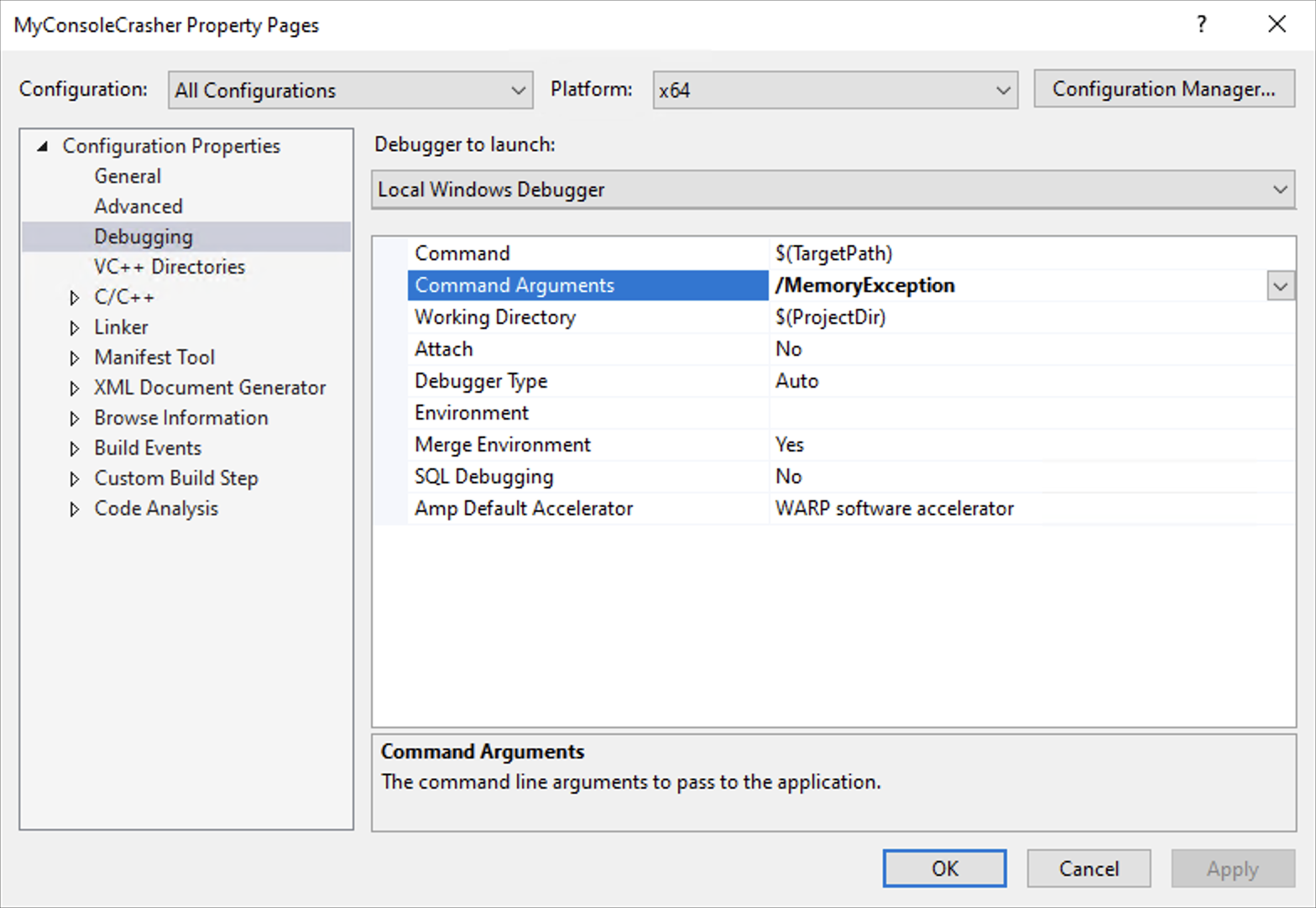
5. Set the command-line arguments for the project to `/MemoryException`, or one of the other supported arguments from the sample's source code, to test various crashes. To set the command-line arguments, right-click the `MyConsoleCrasher` project and select **Properties > Debugging > Command Arguments**.
6. Rebuild the project and run it outside of the Visual Studio debugger (Ctrl+F5). This is important since the debugger interferes with the BugSplat library’s exception handling. You should see a dialog such as that shown below:
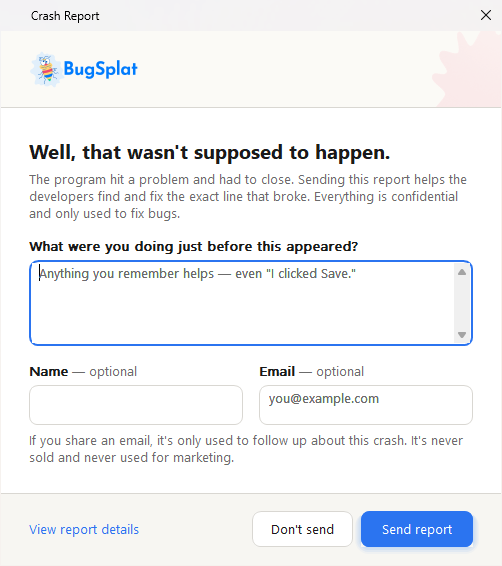
7. Enter some descriptive text to help you identify the crash you are about to upload. Click the `Send report` button, and voilà! The report will be sent! In the BugSplat web app, look for the crash report with the description you entered.
8. Navigate to the BugSplat [Dashboard](https://app.bugsplat.com/v2/dashboard) and click the link in the ID column to view details about your crash, including the full symbolicated stack trace and various crash metadata.
Finally, experiment with other features of the library by examining the `MyConsoleCrasher` source code and supplying different command-line arguments.
#### Additional Info
{% content-ref url="/pages/-MgDD2HBaxz6ZRHcUPQ8" %}
[Address Sanitizer Reports](/getting-started/posting-a-test-crash/myconsolecrasher-c-plus-plus/address-sanitizer-reports.md)
{% endcontent-ref %}
---
# Agent Instructions
This documentation is published with GitBook. GitBook is the documentation platform designed so that both humans and AI agents can read, navigate, and reason over technical content effectively. Learn more at gitbook.com.
## Querying This Documentation
If you need additional information that is not directly available in this page, you can query the documentation by asking a question.
Perform an HTTP GET request on the following URL with the `ask` and `goal` query parameters:
```
GET https://docs.bugsplat.com/getting-started/posting-a-test-crash/myconsolecrasher-c-plus-plus.md?ask=&goal=
```
`ask` is the immediate question: it should be specific, self-contained, and written in natural language.
`goal` is what the user is ultimately trying to achieve, the reason they need the answer. Sharing it helps GitBook give you a better, more relevant answer. A goal is most helpful when it describes the outcome the user wants rather than restating the question. For example, with `ask=how do I create an API token`, a goal like `automate deployments from our CI pipeline` lets GitBook tailor the answer to that use case.
The response will contain a direct answer to the question and relevant excerpts and sources from the documentation.
Use this mechanism when the answer is not explicitly present in the current page, you need clarification or additional context, or you want to retrieve related documentation sections.